FotoCube APP
App Usage Guide
Manage the Calendar
Create New Calendar Items
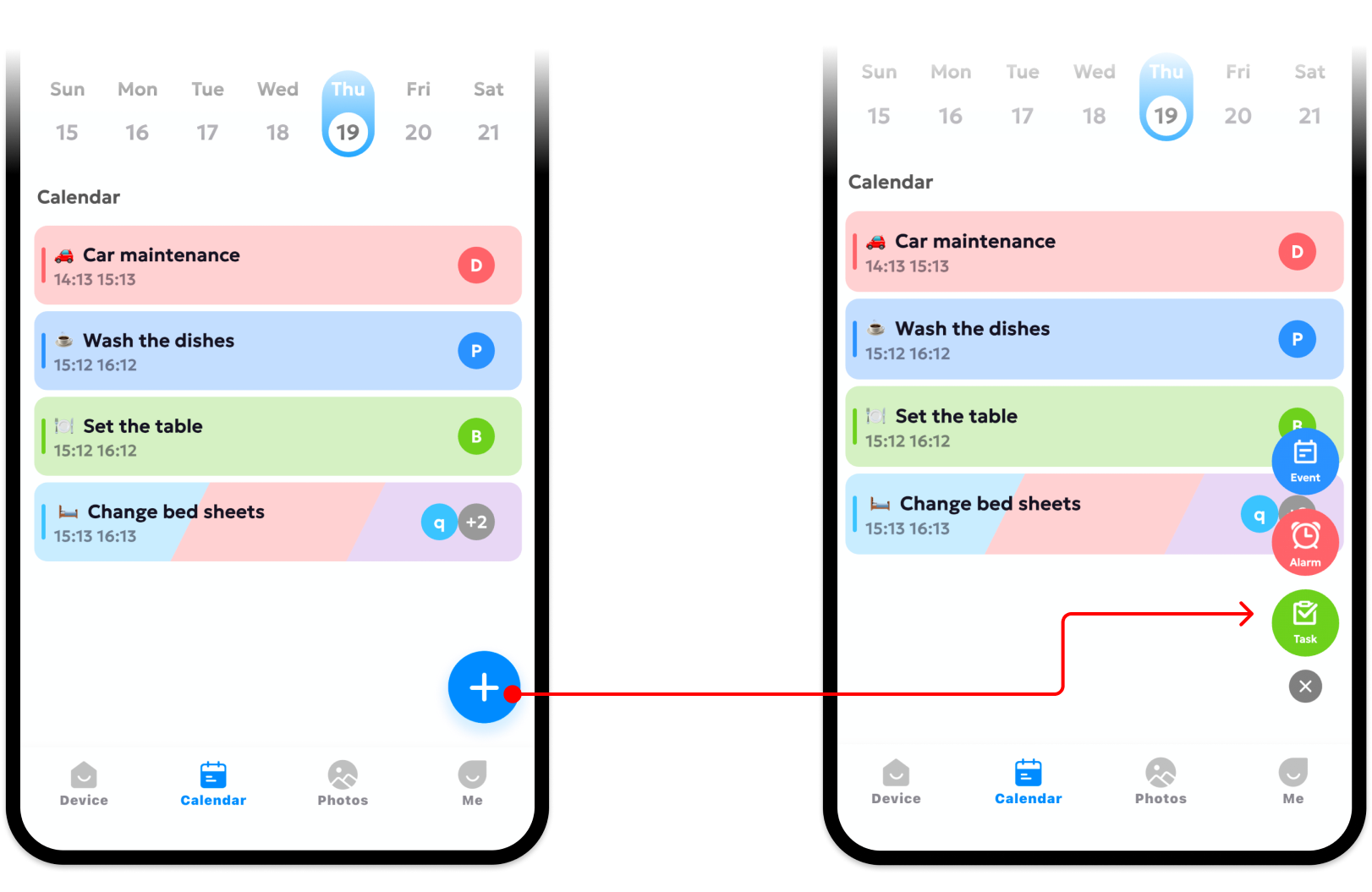
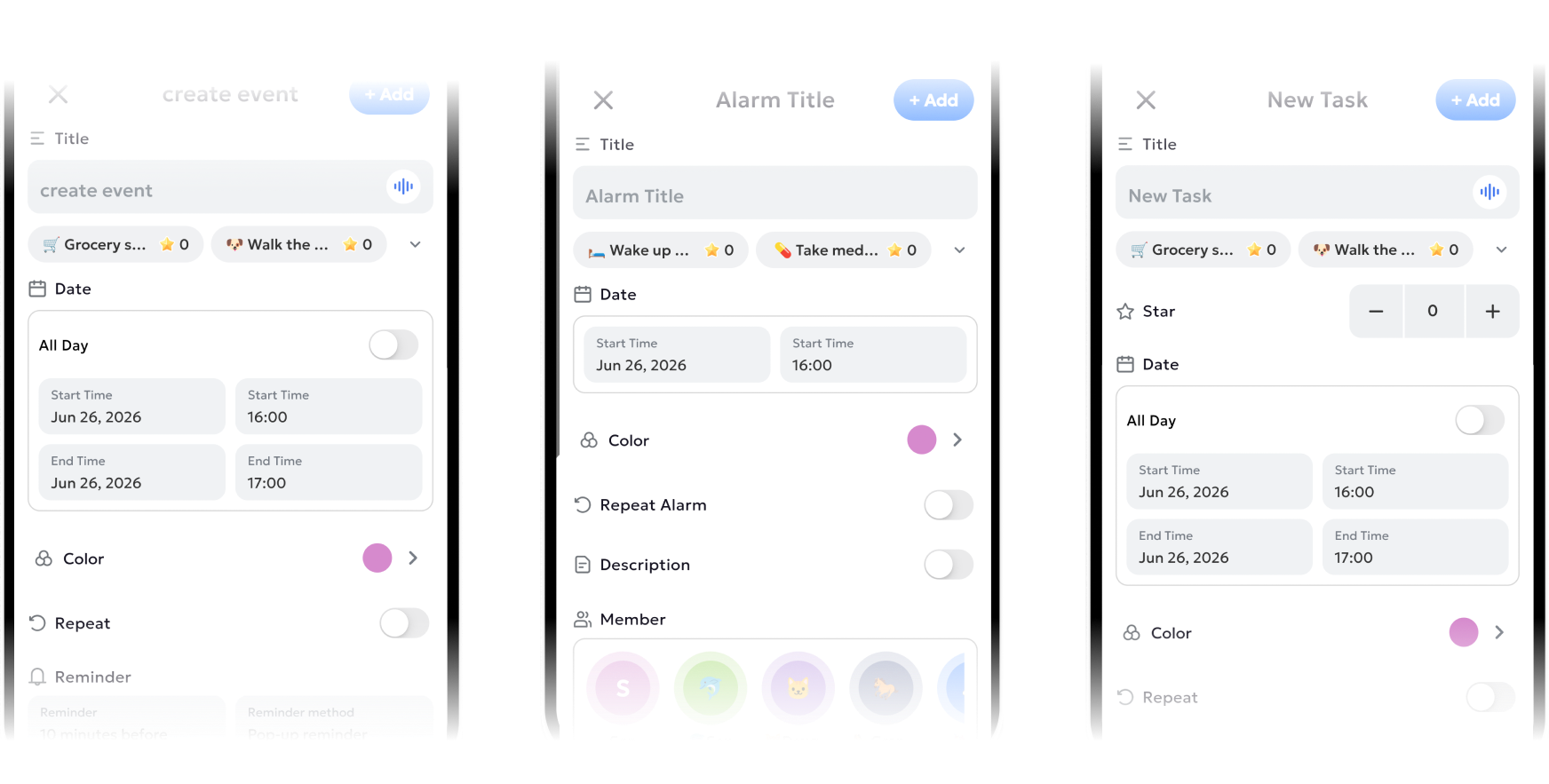
Click the "+" button in the lower right corner and select Event, Alarm, or Task.
Manage Members
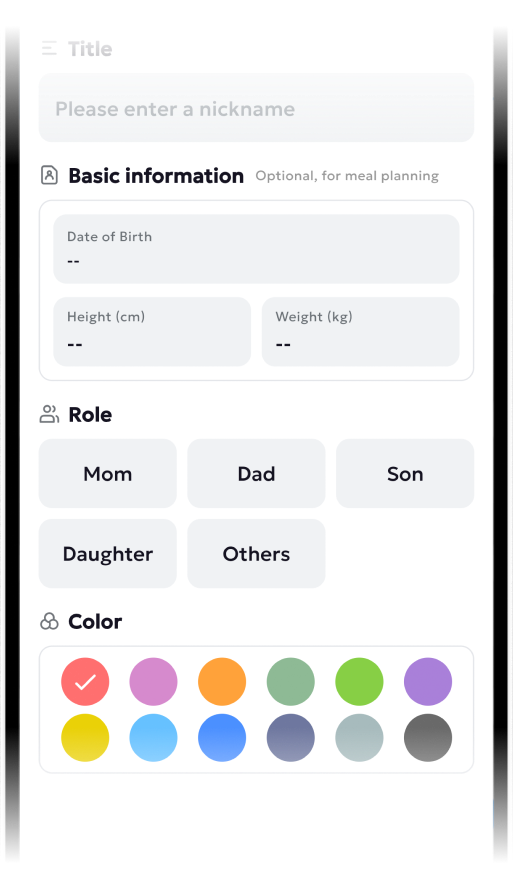
Swipe right on the top of the Calendar page to enter the Member page, then tap the "+" icon at the bottom right to add members.
You may set nicknames, link email addresses and assign exclusive background colors for each member.
Import Third-Party Calendars
Supports importing third-party calendar data from your phone. Open the FotoCube APP "Home Page" - "Calendar" - "Import", and select the calendar types to be imported Refer to Import Calendars.
Meal Plan
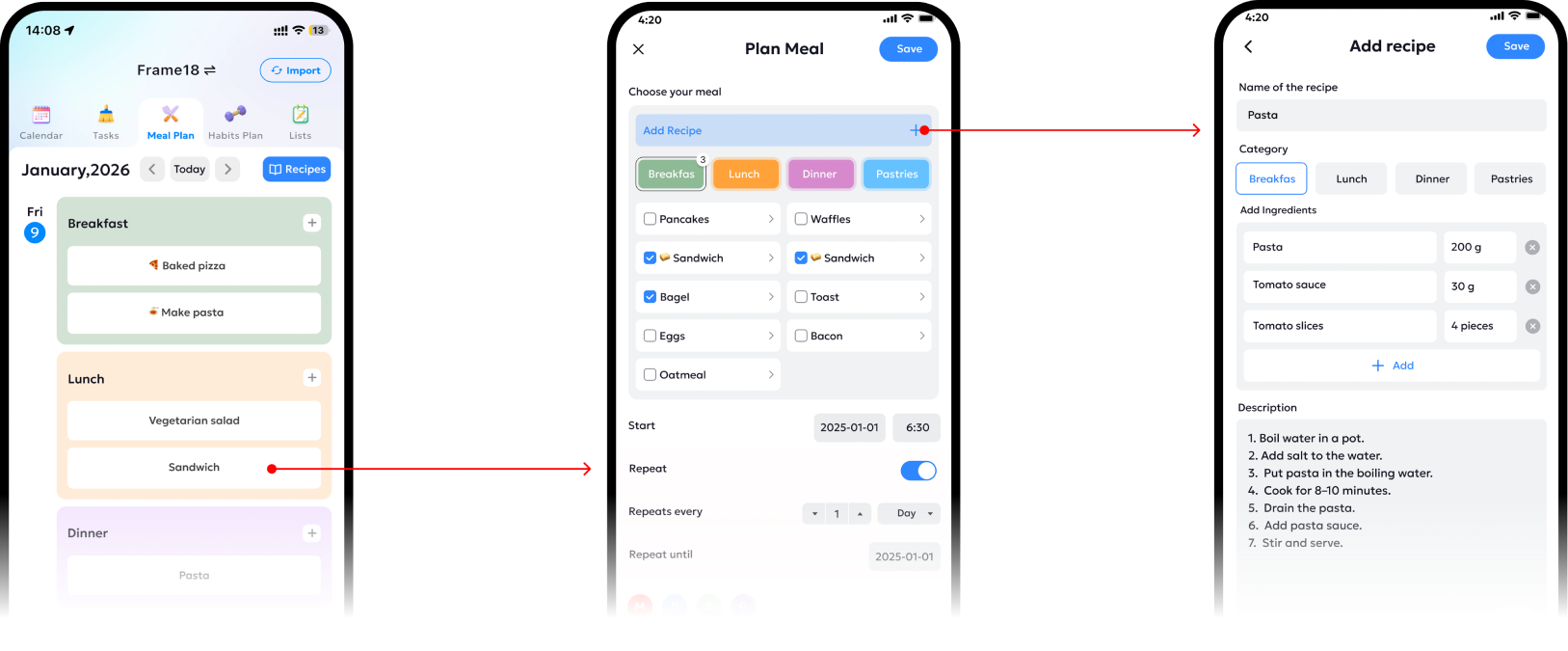
Supports creating personalized meal plans.
Open the app, go to Calendar > Meal Plan, then select Breakfast, Lunch, or Dinner to create a corresponding meal plan.
Users can also add meal photos and detailed descriptions to enrich their meal planning experience. This feature is exclusive to mobile devices.
Habits Plan
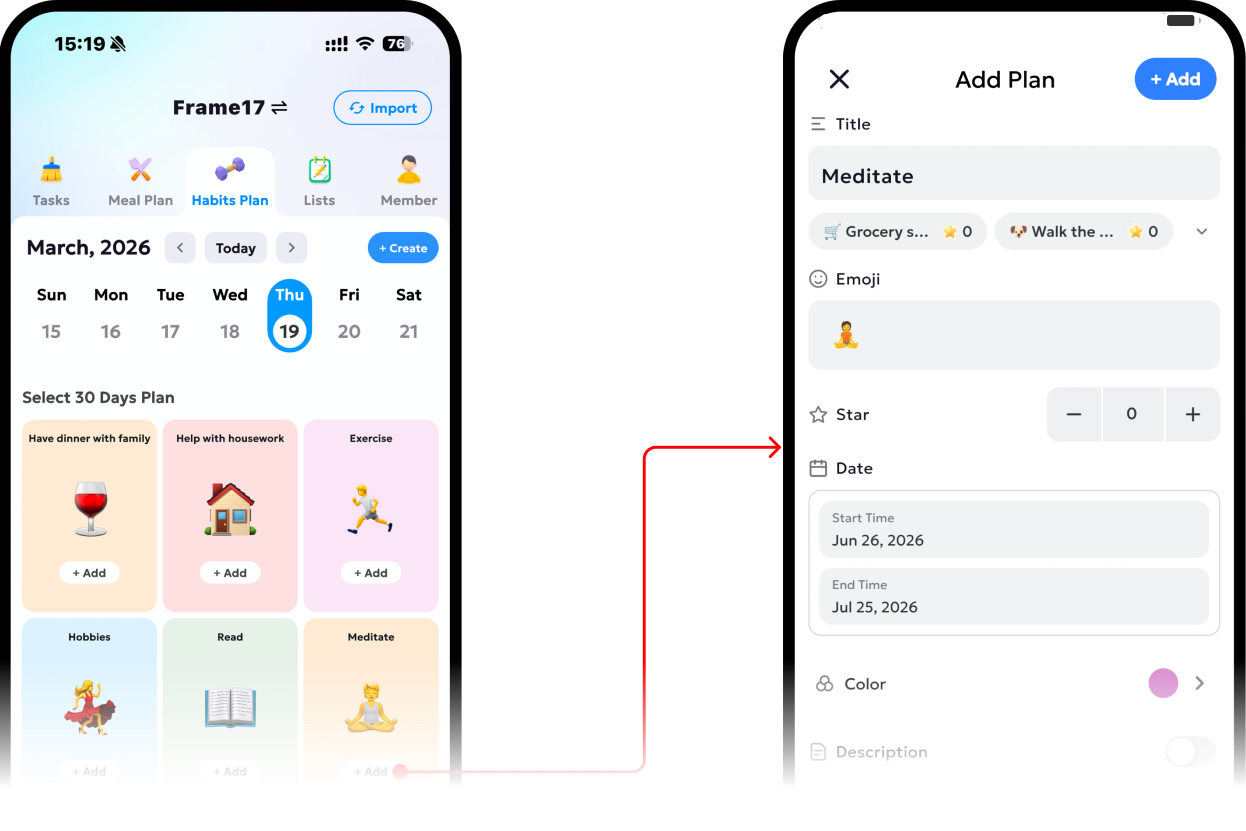
Supports the creation of a 30-day habit-building plan. Users can navigate to Calendar > Habits Plan, and click the "+ Add" button to create a new plan.
For plans that have already been created, users can click on the card to edit or adjust member information.
Manage Devices

Time Zone Check
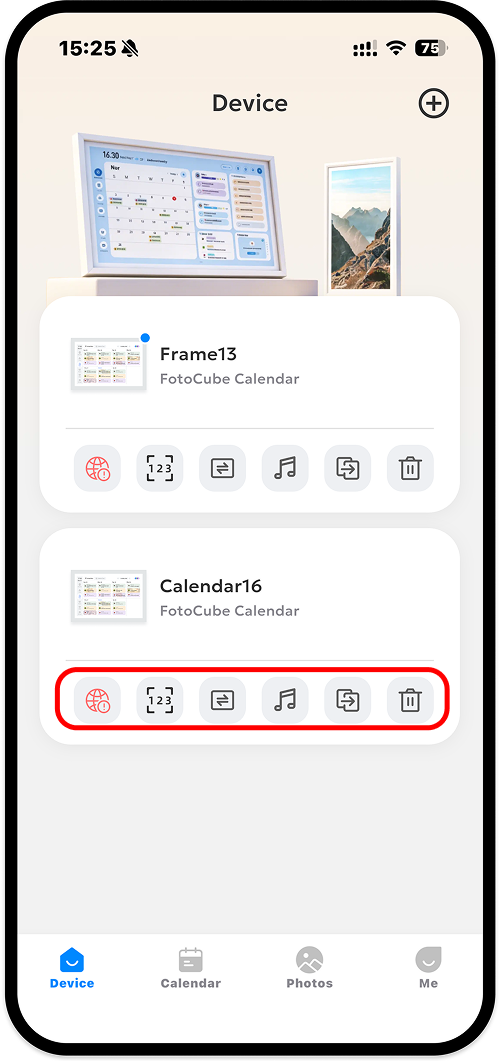
Alerts for mismatched time zones between frame and phone. Adjust settings to fix calendar errors; reminders can be disabled.
Share the device pairing code
Click to pop up the QR code and pairing code of the device. You can take a screenshot to share or copy the digital pairing code for sharing.

Switch Device Modes Remotely
Select your favorite mode for the specified device, such as Photo Frame, Family Calendar, or Art Gallery.

Set Device Background Music Remotely
Send audio content to the specified device as the background music of the device.

Data Migration
Fast one-click calendar data transfer between old and new devices in three steps.
Remove a Linked Device
Tap to remove the device.